
Imagine you're writing an important document and you find a piece of information online that you want to save. You could rewrite it, word for word, but there's a much easier alternative. Learn how to copy and paste in Windows It will allow you to move texts, photographs, files and folders from one place to another in a matter of seconds.
Although it's one of the most frequently used functions on any computer, there are still little tricks that many users are unaware of. From classic keyboard shortcuts to clipboard history, Windows offers different ways to copy, cut, and paste content without complications.
In this guide you will discover how to use these tools in Windows 10 and Windows 11, Whether you prefer working with the keyboard or find it more comfortable to use the mouse, you'll learn how to troubleshoot common problems and take advantage of features that can save you a lot of time.
What does copy and paste mean in Windows?
Before we begin, it's helpful to understand what happens when you use these functions. Copying an item in Windows, The system temporarily stores a copy of its contents in a memory area known as the clipboard.
The original element remains exactly where it was. This means you can copy a paragraph from one document, paste it into another, and keep both versions without losing any information.
The function paste It retrieves what you've copied and places it in your chosen location. This could be a Word document, a conversation, a folder on your computer, or virtually any compatible application.
There is also a third function, called cut, The purpose of this is to move content rather than duplicate it. When you cut a piece of text, it disappears from its original location and you can insert it elsewhere. In the case of files, the transfer is usually completed when you paste them into the destination.
How to copy and paste in Windows using the keyboard
The fastest and most popular method for copying and pasting is to use the Windows keyboard shortcuts. These are key combinations that allow you to perform actions without having to open menus or constantly use the mouse.
The two fundamental commands you must remember are Ctrl + C to copy y Ctrl + V to paste. They work on Windows 10, Windows 11 and the vast majority of common programs.

To see how it works, open any document containing text and follow these instructions:
- Select text that you want to copy by holding down the left mouse button while dragging the cursor.
- Press the keys simultaneously Ctrl + C.
- Open the document or program where you want to place that content.
- Click on the exact place where you want to insert it.
- Press Ctrl + V to paste the copied text.
The content will appear immediately in its new location. The interesting thing is that you can repeat the last step as many times as you want, because Copying an item does not mean it disappears from the clipboard after pasting it..
For example, if you need to include the same address in five different documents, simply copy it once and paste it into each document.
How to select text before copying it
One of the most common mistakes is trying to copy something without selecting it first. To avoid this, you need to learn how to highlight the content you want to copy.
If you're using a mouse, simply place the cursor at the beginning of the text, hold down the left button, and drag it to the end of the passage. When it appears highlighted, you can copy it.
You can also double-click a word to quickly select it. In many applications, triple-clicking selects an entire paragraph, though this behavior depends on the program.
Another option is to use the keyboard. Press and hold the key Shift while pressing the direction arrows to progressively expand the selection.
If you need to select all the content of a document, use Ctrl + A. This shortcut is especially useful when you want to copy a complete text, a long list, or all the files in a folder.
How to copy and paste with the mouse in Windows
Not everyone is comfortable using keyboard shortcuts. Luckily, copy and paste with the mouse It is equally simple and offers very visual control over what you are doing.
Imagine you've found a recipe on a website and want to save it to a document. First, select the text, and then right-click on the selection.
A context menu with different options will appear. Search Copy and select it. Then, open the document where you want to save the information, right-click in the corresponding location, and choose Paste.
This procedure also works with numerous system elements, such as images, files, and folders. However, some applications or websites may have different menus or restrict certain actions.
How to copy and paste in Windows 11
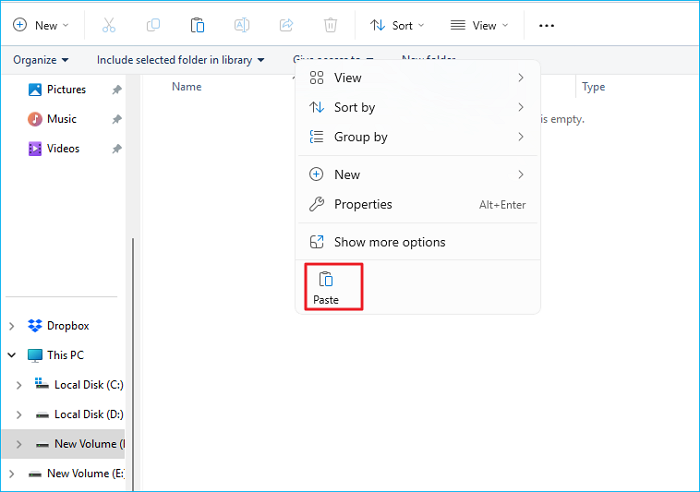
If you use Windows 11, you've probably noticed that some menus are different from those in previous versions. Microsoft changed the design of the File Explorer and its context menus to give greater prominence to routine activities.
In some versions, the copy, cut, and paste options are represented by icons. Usually, Copying is represented by two overlapping sheets of paper., while Cut uses scissors and Paste displays a symbol related to the clipboard.
In other versions or configurations, these functions may appear as text options. Therefore, don't worry if your computer's menu looks different from a screenshot you found online.
When you can't find the option you're looking for, try with Show more options within the context menu. You can also use the shortcuts Ctrl + C and Ctrl + V, which avoid having to locate these commands.
How to copy and paste files and folders in Windows
The copy and paste functions aren't just for working with words. They also allow Duplicate photos, videos, documents, folders, and other files stored on your computer.
Imagine you have several photos in your Downloads folder and you want to keep a copy in a folder called Vacation. You don't need to open each image or use any special programs.
Simply follow these steps:
- Open the File Explorer using Windows + E.
- Access the folder that contains the original files.
- Select the file or folder you want to duplicate.
- Press Ctrl + C.
- Open the destination folder.
- Press Ctrl + V.
Windows will begin copying the selected items. If they are small files, the operation may be completed almost instantly. When copying large videos or folders containing thousands of documents, the process may take longer.
One important advantage is that The original files remain in their initial location.. This way, you can organize backups or distribute documents between different folders without losing their content.
How to copy multiple files at the same time
Suppose you want to select five photos from a folder containing hundreds. Copying them individually would be quite tedious, but Windows allows you to do so. select multiple files simultaneously.
To select separate files, hold down the key Ctrl While clicking on each one of them. When you're finished, press Ctrl + C and paste them into the destination folder.
If the files are placed consecutively, you can select the first one, hold down the key Shift and click on the last one. Windows will also select the items located between them.
When you want to copy absolutely all the contents of a folder, press Ctrl + A and then Ctrl + C. It is a particularly convenient solution for transferring entire collections of documents or photographs.
What is the difference between copying, cutting, and pasting?
Although these three actions appear together in many menus, each serves a different function. Understanding them will allow you to Organize Windows files without creating unnecessary duplicates.
| Action | Keyboard shortcut | Function |
|---|---|---|
| Copy | Ctrl + C | Prepare a copy of the selected item. |
| Cut | Ctrl + X | Prepare the item to move it to another location. |
| Paste | Ctrl + V | Insert the contents of the clipboard. |
| Select all | Ctrl + A | Select all compatible elements in the window or document. |
| Undo | Ctrl + Z | Reverse the last operation when the application allows it. |
| Clipboard history | Windows + V | Displays previously copied items. |
For example, if you want to keep a document in both the Downloads folder and Documents, you should use Copy and Paste. If you want to permanently move it from one folder to another, you'll usually want to use Cut and Paste.
Remember that cutting files doesn't immediately delete them from their original location. Windows prepares the operation and usually completes the move once you paste them into the destination.
How to copy and paste plain text in Windows
You've probably copied a snippet from a webpage and, when pasting it into a document, discovered that its colors, font sizes, or links also appeared. This happens because many applications retain the formatting. original format of the copied text.
If you only need the words, you can use the command Ctrl + Shift + V in applications that support pasting as plain text.
This shortcut typically removes visual elements such as bold text, colors, fonts, and other styles, leaving only the text content. It is especially useful when writing emails or transferring information between different editors.
Keep in mind that Not all programs use this shortcut in the same way.. Some applications offer their own special gluing options.
In Microsoft Word, for example, you can find different paste options that allow you to preserve the original formatting, combine it with the destination document, or keep only the text.
How to copy and paste images in Windows
Photos can also be copied and pasted very easily. If you have an image saved on your computer, you can select it in File Explorer and use Ctrl + C to copy it.
Afterwards, you can paste the file into another folder or use the corresponding options of a compatible program to incorporate the image into your work.
If you are browsing the internet and find a photograph, you can right-click on it and select Copy image, provided that the browser offers that possibility.
Next, open Word, Paint, or another compatible application and press Ctrl + V. The image will appear within the document or canvas, provided the program supports that type of content.
It is important to distinguish between Copy image y Copy image address. The first option copies the visual content; the second copies only a web address.
How to copy and paste a screenshot
There is another very useful procedure when you need to share something that appears on your monitor. Windows allows you to capture a portion of the screen and paste it directly in a document or conversation.
Press simultaneously Windows + Shift + S. The screen will display the capture tools, from which you can select the area you wish to save.
Once you've finished selecting the area, the screenshot will be copied to your clipboard as usual. Then, open Paint, Word, or a compatible messaging app and press [button name missing]. Ctrl + V.
This feature is especially useful for creating tutorials, displaying an error message, or sharing visual instructions without having to save a photograph first.
What is the Windows clipboard and how does it work?
The clipboard is one of those system components that you use constantly without even realizing it. Its function is to... temporarily store the content you copy or cut so you can retrieve it when you need it.
In its most basic operation, when you copy a new element, it replaces the content previously available for conventional pasting.
However, Windows 10 and Windows 11 incorporate a feature called clipboard history, with which you can recover certain previously copied elements without having to return to where they were.
This tool can be especially useful if you're gathering different pieces of information for a document, because it saves you from having to constantly switch between applications.
How to enable clipboard history in Windows
If you've never used this feature, you'll probably be surprised to find out how easy it is to access. You just need to press Windows + V on your keyboard.
If history is not yet enabled, Windows may display a prompt to activate it. Once activated, you will be able to view compatible items you copy later.
You can also access Settings > System > Clipboard and activate the Clipboard History option.
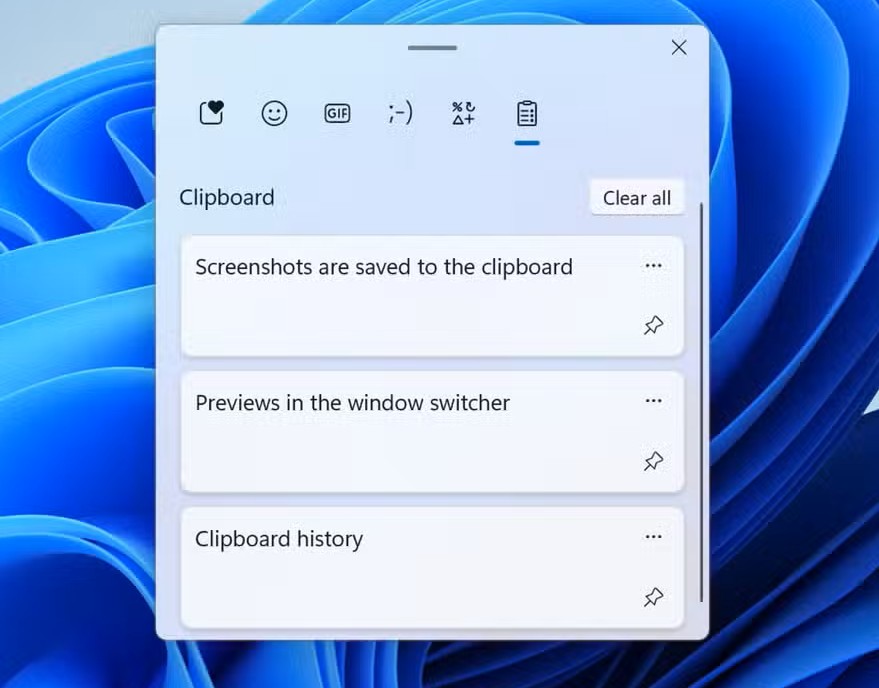
Imagine you've copied three different snippets from a webpage. Instead of searching for them again, you can open the history by pressing Windows + V, Locate the fragment you need and select it to insert it into the application where you are working.
The history feature supports certain texts and images, although it has limits on quantity, size, and format. Therefore, you should not consider it a permanent document storage system.
How to clear clipboard history
The history feature is convenient, but it can also temporarily store content you'd rather not keep, such as personal information, addresses, or snippets of private documents.
To remove these items, press Windows + V Look for the option to clear your history. You can also delete individual items from their respective menus.
Another possibility is to open Settings > System > Clipboard and use the option to delete the stored data.
Keep in mind that certain pinned items may be retained when you clear the general history. If you want to completely clear the stored information, also check the items you've pinned.
For security, avoid copying passwords or confidential data when it's not necessary, and remember that Applications can access certain clipboard contents according to their permits and operation.
How to copy and paste between two different programs
One of the most useful features of Windows is that you can transfer information between applications without needing to use a special format.
For example, imagine you're writing a report in Word and you need to include an address you received by email. You can Copy the address from your browser and paste it directly into Word..
Select the text, press Ctrl + C, and switch to the other application using the taskbar or by using Alt + Tab. Next, place the cursor where you want to insert the content and press Ctrl + V.
The same procedure works in many combinations of programs, such as copying information from a browser to Excel, moving paragraphs from Word to Notepad, or inserting images into Paint.
That's right, The result of the bonding depends on what each application supports.. A simple text editor, for example, does not necessarily preserve images or complex styles.
How to copy and paste in Word and Excel
Microsoft Word and Excel are two of the programs where these functions are most commonly used. In Word you can copy words, paragraphs, tables, and images, while Excel allows you to work with cells, formulas, and data ranges.
To copy a paragraph in Word, select it and press Ctrl + C. Then, place the cursor at the destination and press Ctrl + V. If you need to change its formatting, you can use the paste options offered by the program itself.
In Excel, select a cell or a range of cells, use Ctrl + C and then choose the cell where the copy should begin before pressing Ctrl + V.
It's important to remember that Excel can copy both values and formulas, as well as other cell attributes. If you only need to paste the results, you can use Special glue > Values from the corresponding options.
This distinction is crucial when working with spreadsheets that contain automated operations and you only want to transfer the final data.
How to copy and paste between two Windows computers
If you regularly work with multiple teams, you might be interested in an additional feature: the ability to synchronize certain clipboard contents between devices.
Windows incorporates synchronization options that, when available and properly configured, allow compatible content to be shared between computers linked to the same account.
To check this, open Settings > System > Clipboard and look for options related to synchronization between devices.
Functionality may vary depending on the Windows version, the account used, and the computer's security policies. Additionally, not all types of content are synchronized.
If you need to move entire documents, large photographs, or folders, it's probably best to use OneDrive, a USB drive, or a shared folder.
Why copy and paste isn't working in Windows
Sometimes, you might find that you press Ctrl+C and Ctrl+V, but nothing seems to happen. While this can be frustrating, Problems copying and pasting in Windows They usually have relatively simple explanations.
Before modifying the system settings, check the following possibilities:
- You have not selected the content correctly. Make sure the text or file is highlighted before copying it.
- The program does not support that content. Some applications only allow pasting text or certain formats.
- The file is protected. There may be a permission restriction that prevents it from being copied or modified.
- The clipboard is experiencing a temporary failure. Try copying another item or restarting the application.
- Some key is not working. Check the shortcuts using another program or use the context menu.
- The application is blocked. Close the program and reopen it to see if the problem is solved.
If the error affects multiple applications, it can be helpful restart Windows, Check for pending updates and verify that no clipboard management program is interfering.
You should also be aware that some websites and applications intentionally place restrictions on certain operations. In these cases, the problem isn't always related to your computer.
Tips for copying and pasting faster in Windows
Once you master the basic procedures, you can incorporate small habits that will make your daily tasks much more efficient.
The first one consists of combine Ctrl + A, Ctrl + C and Ctrl + V When you need to copy all the content of a document, these three key combinations allow you to select, copy, and paste with minimal movement of your hands from the keyboard.
Another trick is to keep two windows open and place them side by side. This way you can copy information from one window and paste it into the other without losing sight of any of the documents.
If you need to work with many snippets of text, turn on clipboard history. This feature can help you retrieve previous content and avoid unnecessary scrolling.
Finally, get used to using Ctrl + Z When you make a mistake, many applications allow you to undo the last action, which is especially useful if you've pasted content in the wrong place or accidentally deleted a piece of text.
Frequently asked questions about copying and pasting in Windows
What keys are used to copy and paste in Windows? You must use Ctrl + C to copy the selected content and Ctrl + V to paste it in the place you have chosen.
How can I copy and paste without using the keyboard? Select the content, right-click, and use Copy. Then, open the destination location and select Paste from the corresponding menu.
How can I copy all the text from a page? In many applications, you can use Ctrl+A to select all available content and then Ctrl+C to copy it. Note that some pages have elements that cannot be selected this way.
How do you paste text without preserving its formatting? In compatible applications you can use Ctrl + Shift + V. If that doesn't work, look for a special paste option that allows you to keep only the text.
Can I copy multiple items and paste them later? Yes. Windows Clipboard History allows you to store and retrieve certain compatible items. You can open it by pressing Windows + V after enabling the feature.
Does copying and pasting delete the original file? No. When you copy a file and paste it into another folder, the original remains in its original location. To move it, you normally need to use Cut and Paste.
Are the shortcuts the same in Windows 10 and Windows 11? Yes. The basic commands Ctrl + C, Ctrl + X, and Ctrl + V work essentially the same in both versions of the operating system.
Conclusion: Mastering copy and paste will help you work better
Learn how to copy and paste in Windows It may seem like a basic task, but knowing all its possibilities transforms the way you use your computer. What previously required rewriting a document or manually moving files can now be done with just a few keystrokes.
Shortcuts Ctrl + C and Ctrl + V They are the starting point, but it is also worth familiarizing yourself with mouse options, multiple selection, raw pasting, and clipboard history.
The next time you need to move a photo, reorganize folders, or recover a piece of information, remember that Windows offers various tools to do it quickly and easily.
With a little practice, Copying, cutting, and pasting will become automatic gestures. which will allow you to work more comfortably, organize your documents and make better use of the time you spend in front of the computer.
When you really learn how to copy and paste in Windows, your way of working changes forever.
It may seem like a function simple, But if you master it thoroughly, you gain minutes, even hours, over the course of the week.
In this guide you will find a clear, straightforward explanation designed for you to practice while you read.
You will see shortcuts to keyboard, use of the mouse, The program also includes advanced tricks, typical errors and a summary table that you can consult whenever you need it.
Why is it so important to know how to copy and paste in Windows? 🧠
Saber copy and paste in Windows is not only a technical issue, it is a way to work with more head and less effort.
Every time you rewrite something you already had somewhere else you're wasting time and increasing the chances of making mistakes.
With copy and paste you reduce repetition, speed up tasks and feel that the computer is finally working. with you and not against you.
In addition, mastering this skill helps you whether you are writing a text, sorting files, studying or working from home.
Basic keyboard shortcuts for copying and pasting in Windows ⌨️
Keyboard shortcuts are the most common way to fast and requires copy and paste in Windows.
The universal shortcut for copy is Ctrl + C, and it works in the vast majority of Windows programs.
The shortcut to paste is Ctrl + V, and allows you to insert whatever you have in the clipboard right where you have the cursor.
If you want to cut instead of copying, i.e. moving something from one place to another, use Ctrl + X.
To select the entire contents of a window or document you can use Ctrl + A, very useful before copying large blocks of text.
Remember that before pressing Ctrl + C o Ctrl + X you must have selected the text, file or element you want to copy or cut.
Think of these shortcuts as a little finger choreography that, once internalized, you will do almost without thinking.
How to copy and paste with the mouse in Windows 🖱️
If you prefer to use the mouse because it is more intuitive for you, Windows also makes it easy for you.
To copy a text with the mouse, first click and drag to select the part that interests you.
Once selected, click with the right button mouse button and choose the option "Copy" from the context menu.
Then place the cursor on the place where you want to paste the content, right click again and select “Paste”.
With files and folders the process is very similar, you select the item, right click, "Copy", go to the destination folder and right-click, “Paste”.
You can also use the right mouse button to “Cut”, This will allow you to move the file to another location by deleting it from the original place.
This mouse method is ideal if you are just starting out and are not yet comfortable with shortcuts. keyboard.
Copying and pasting text between different programs 📝➡️📧
One of the most useful things about Windows is to be able to copy in one program and paste in another without complications.
You can type a text in an editor such as a word processor and then copy it to paste it into an e-mail.
The procedure is the same, you select the text, you use Ctrl + C or right click on "Copy", you change the program and then Ctrl + V to glue.
If you are not convinced by the formatting because it drags strange styles, in many programs there is the option “Paste text only” or “Paste without formatting”.
This option removes colors, fonts, and sizes, leaving only the clean text, This is very useful when copying from complex pages or documents.
Get in the habit of checking what you have pasted to make sure that the text looks the way you want it to and that no extraneous formatting has crept in.
Copying and pasting files and folders in the File Explorer 📂
When you organize your computer, know copy and paste files in Windows Explorer is essential.
Open the File Explorer and navigate to the folder where you have the file you want to copy.
Click once on the file to select it and then press Ctrl + C or right-click and choose "Copy".
Go to the target folder in the side pane or in another Explorer window and use Ctrl + V or right click on “Paste”.
If you want to duplicate an entire folder with its contents, the procedure is exactly the same, but selecting the folder.
The option “Cut” will come in handy whenever you want move files with no copies remaining in the original location.
You can also use the drag and drop, by dragging the file with the mouse from one folder to another within Explorer.
Be careful when dragging so that you don't drop the file into the wrong folder and then not remember where it went.
Advanced tricks: cut, paste special and clipboard 📋✨
Once you have mastered the basics of how to copy and paste in Windows, It's time to raise the bar a little bit.
The command “Cut” (Ctrl + X) is perfect when you don't want to duplicate, but simply move something from one place to another.
In text and spreadsheet programs there is often the option “Special gluing” which allows you to choose how the content is pasted.
With the special gluing you can keep only values, only format, or even paste as image in some applications.
In modern versions of Windows you also have the Clipboard historywhich you can open with Windows + V.
This history allows you to view several items that you have recently copied and choose which one you want to copy paste, instead of relying solely on the latter.
To use it, you first have to activate this feature from the system settings, which is a one-time action and then it becomes available.
When you start using the clipboard history, you notice a huge jump in your ability to handle repeated information.
Frequent errors when copying and pasting and how to fix them ⚠️
One of the most common mistakes is to believe that you have copying something when you haven't actually selected anything before.
If you press Ctrl + C without selecting text or files, the item you were expecting will not be copied and the clipboard will remain the same as before.
Another typical failure is pasting in the wrong place because you haven't clicked before to correctly position the cursor.
It can also happen that the program where you are trying to paste does not allow that type of content, for example an image in a field that only allows text.
When you notice that pasting does not work, try copying again and check that the selection is correct and that the destination supports what you want to paste.
If the system is slow, sometimes it takes a moment for the clipboard to update, so it may help to repeat the action slowly.
In rare cases, restart the program, or even restart Windows can solve problems with the locked clipboard.
Summary table: shortcuts and methods to copy and paste in Windows 📊
Below you will find a summary table with the main methods for copy and paste in Windows, so that you can consult it at a glance.
| Action | Main method | Quick Detail |
|---|---|---|
| Copy text | Ctrl + C | Select the text and use Ctrl + C to save it to the clipboard. |
| Paste text | Ctrl + V | Position the cursor and press Ctrl + V to insert the copied content. |
| Cut text | Ctrl + X | Moves the text to another place and removes it from the original by pasting it. |
| Select all | Ctrl + A | Selects the entire contents of the active window or document. |
| Copy with mouse | Right-click → Copy | Select, right click and choose Copy in the context menu. |
| Paste with mouse | Right-click → Paste | Position the cursor or folder and use Paste from the context menu. |
| Copy files | Ctrl + C or right click | Select one or more files and use Ctrl + C or the option Copy. |
| Cut files | Ctrl + X | Move files to another location without leaving a copy in the original. |
| Clipboard (history) | Windows + V | Displays several recently copied items to choose which one to paste. |
| Special gluing | Menu Special gluing | It offers formatting, value or image options depending on the program. |
Frequently asked questions on how to copy and paste in Windows ❓
What exactly is the clipboard in Windows?
The clipboard is a temporary memory area where Windows stores what you copy or cut so that you can paste it later.
Why am I sometimes unable to paste what I have copied?
Sometimes you can't paste because the target program does not support that type of content or because it was not copied to the clipboard properly.
Can I copy and paste using only the keyboard, without the mouse?
Yes, you can select text with keys such as Shift + arrows and then use Ctrl + C y Ctrl + V to copy and paste without touching the mouse.
Is it safe to copy and paste passwords in Windows?
Copy and paste passwords is convenient but may be less secure if someone has access to your session or if the clipboard history is active.
How can I copy and paste large amounts of text faster?
For large amounts of text it is ideal to use Ctrl + A to select all and then Ctrl + C y Ctrl + V in the target document.
Is the contents of the clipboard deleted when the computer is turned off?
Yes, when you turn off or restart your computer, If you do not copy the contents of the clipboard, the contents of the clipboard are lost and you will have to copy again what you need.
What do I do if the clipboard history does not work?
If the history of the clipboard does not work, check in the system settings that it is enabled and try restarting the session or the computer.
Master how to copy and paste in Windows is a small effort that gives you back a huge sense of control over your day-to-day digital life.
If you incorporate these shortcuts and tricks into your routine, you will notice that every task becomes a little lighter, a little smoother and, above all, a lot faster.