
You've probably encountered a compressed file you need to open, only to find a window popping up asking for a password when you try to access its contents. This is a fairly common situation, especially when downloading documents, programs, or folders shared over the internet.
Fortunately, there are different ways to approach this problem depending on whether or not you know the access code. In this guide you will discover how to remove the password from a WinRAR And what alternatives do you have when you can't remember the combination used?.
The first thing you should know is that WinRAR uses encryption systems To prevent unauthorized access to certain files, password protection is essential. This means that removing a password isn't always as simple as unchecking a box. However, if you have the original password, you can create a completely unprotected copy in just a few minutes.
Is it possible to remove the password from a WinRAR file?
The answer depends fundamentally on one circumstance: whether you know the original password or have forgotten it. In the first case, the procedure is quite simple, because you can decompress the documents and recompress them without setting any protection.
However, when you don't know the password, the possibilities are much more limited. Modern RAR files use security mechanisms that make it considerably more difficult to discover passwords through automated testing.
It is also important to distinguish between remove the password from an existing file and create a new one without protection. WinRAR doesn't have a universal button that directly removes the encryption from a protected RAR file. The usual procedure is to first extract its contents and then create another compressed file.
Imagine you have a folder called "Important Documents" saved inside an archive called documents.rar. Every time you try to extract it, WinRAR asks for a password. If you know that password, you can recover all the documents and create a new archive called documents-without-password.rar.
This second file It can be opened and unzipped without entering any password., provided you created it without reactivating encryption.
How to remove the password from WinRAR if you know the password
Let's start with the simplest and most recommended procedure. If you have the original password, you don't need to install any additional tools or use recovery applications.
The entire process can be done directly from WinRAR on Windows 10 or Windows 11, using its usual extraction and compression functions.
Before you begin, check that you have enough free space on your hard drive, because you will need to temporarily store the unzipped documents and the new file you are going to create.
- Locate the protected RAR file. Open Windows File Explorer and locate the compressed document whose password you want to remove.
- Right-click. Select the "Extract files," "Extract here," or "Extract to" option, depending on the options available in your version of WinRAR. On Windows 11, you may need to open "Show more options" first.
- Enter the original password. When the window appears requesting the password, type it exactly as it was set, respecting uppercase letters, lowercase letters, and special characters.
- Wait until the extraction is finished. WinRAR will decompress the files and save them to the selected location.
- Check that you can open the documents. Access the extracted folder and verify that its contents are complete and functioning correctly.
- Select the unzipped files. You can select all documents or directly the folder that contains them.
- Right-click and select "Add to archive". A window will open where you can configure the new compressed file.
- Select the RAR or ZIP format. Enter a different name than the original to avoid confusion.
- Do not set a password. Check that there is no key configured for the new compression.
- Press "Accept". WinRAR will create a new compressed file that you can open without needing to enter a password.
Once the procedure is complete, you will have two versions of the same contentThe original protected file and a new copy without a password. I recommend keeping the first one until you're sure all the documents in the second one work perfectly.
If the new file still asks for a key, check that you don't have a default password set in WinRAR. We'll see how to remove it later.
How to create a passwordless RAR file after extracting it
One of the most frequent questions arises precisely during the second part of the procedure. Even if you have successfully extracted the documents, you may not know how to configure WinRAR to prevent it from re-encrypting them.
When you select «"Add to archive"», A window opens that allows you to change the name of the compressed file, choose its format, and set different parameters related to compression.

In this window you will find the option «"Set password"», which allows you to encrypt the content. To create an unprotected file, make sure there is no active password.
If you entered a default password in WinRAR, remove it before starting the compression process. You can do this by pressing Ctrl + P in the main WinRAR window and leaving the password field blank, or by closing and reopening the program.
Next, select your preferred format. RAR is usually a good choice when you regularly use WinRAR, while ZIP is especially practical if you want to share documents with people who use different operating systems.
Finally, click "OK" and wait for the compression to finish. To verify that everything went well, close WinRAR, reopen the new file, and try to extract it. If you don't see a password prompt, the process worked.
How to remove a WinRAR password without knowing it
Now let's imagine a different situation. You have a protected RAR file, but you don't remember the password. Perhaps you saved it several years ago, received it by email, or downloaded it from a website that no longer exists.
In these circumstances you must keep in mind that There is no universal method that allows you to instantly remove any WinRAR password. The encryption is designed precisely to prevent anyone from accessing the content without knowing the key.
That doesn't mean you should give up immediately. Before resorting to specialized programs, there are several checks that can help you regain access.
- Check the location from which you downloaded the file. Some pages provide the password along with the download link.
- Check your emails and conversations. If someone sent you the file, they probably also shared the password via message.
- Look in your password manager. You may have saved the key in some application or personal document.
- Check the passwords saved in WinRAR. If you previously used their password manager, you can review the stored entries.
- Try variations you remember. If you have a rough idea of the password, check for common typing errors, always on your own files or files you have authorization to access.
- Request the file again. If you have contact with the person who created it, ask them for the password or an unencrypted copy.
This last resort is usually the most effective. Many times Retrieving the original document is much easier than trying to discover an unknown password.
Are there any programs to recover WinRAR passwords?
On the internet, you'll find applications that promise to recover RAR file passwords using various search techniques. Some allow you to try character combinations or use lists of previously known passwords.
However, it is important to understand that Recovering a password does not mean removing the encryption.. These tools attempt to find out what the original key was, and their effectiveness depends on numerous factors, especially the complexity of the password.
A short and simple password can be relatively easy to discover, while a long combination of letters, numbers, and symbols can require an extraordinarily long calculation time.
Furthermore, WinRAR uses encryption and key derivation mechanisms designed to hinder mass attacks. Therefore, No serious program can guarantee recovery. of any protected file.
You should also be wary of applications that promise to unlock all RAR files in seconds. Some tools from unknown sources may contain intrusive advertising, potentially dangerous programs, or malicious components.
If you decide to use a recovery tool with a file you own, make sure to download it from its official website and avoid running programs whose origin you cannot verify.
How to delete a password saved in WinRAR
There's another situation that might confuse you. Sometimes the problem isn't with a specific compressed file, but rather that... WinRAR has a default password set. and it applies it when you perform new compression operations.
This can cause you to create protected files without realizing it, especially if you use the program regularly and don't remember setting a global password.
To delete it, open WinRAR and follow these instructions:
- Open the main window of WinRAR.
- Access the menu «"Archive"».
- Select «"Set password"» or use the shortcut Ctrl + P.
- Delete any entered password, leaving the field empty.
- Confirm the operation and verify that there is no longer an active default password.
You can also completely close WinRAR and restart it to clear the default session password.
Remember that this procedure It does not remove the protection from RAR files that were already encrypted.. It simply prevents the default password from being used in new transactions.
How to change the password of a RAR file
Perhaps you don't want to remove the protection entirely, but rather replace an old password with one that's easier to remember or more secure. In that case, the procedure is very similar to the one we explained earlier.
First you will need Extract the documents using the current password. Once recovered, you will need to compress them again and set a different key.
During the creation of the new archive, click "Set password," enter the new password, and confirm. If you want to add extra protection to the RAR format, you can also enable the option to encrypt file names.
This function prevents anyone without the password from even viewing the names of stored documents.
When you're finished, verify that the new file opens correctly with the updated password. Only then should you consider deleting the previous version.
How to remove the password from a ZIP file using WinRAR
Although WinRAR is primarily associated with the RAR format, it also allows you to work with ZIP files. That's why it's quite common to wonder if... the procedure to remove a ZIP password It's different.
Actually, once you know the password, the steps are practically identical. First, you must extract the documents and then recompress them without applying encryption.
The main difference lies in the file format you'll generate. If you select ZIP, you'll get a compressed document that's compatible with many extraction tools.
However, if you don't know the original password, Switching from WinRAR to another decompression program does not automatically remove the protection.. The difficulty in accessing the content will depend on the encryption system used.
Can you remove a WinRAR password with 7-Zip?
Another well-known alternative for managing compressed files is 7-Zip, a free application that allows you to work with different formats.
If you know the password for a RAR file, you can use 7-Zip to extract its contents and then create a new ZIP or 7z file without setting any key.
This can be useful if you already have 7-Zip installed and don't want to use WinRAR to complete the entire process.
However, it is worth remembering that 7-Zip also cannot automatically bypass the encryption of a protected RAR file.. If the file requires a valid password to extract the data, you will need to provide it.
Therefore, changing programs is not a solution for recovering encrypted documents when you completely do not know their password.
What to do if WinRAR keeps asking for a password
It's possible that you've followed all the steps correctly and yet a window still appears asking for a password. Before repeating the procedure, it's a good idea to check which file you're trying to open.
One of the most frequent mistakes is to accidentally opening the original file instead of the new, unprotected copy. If they both have very similar names, it's easy to confuse them.
It is also possible that the new file was created with a default password that remained active during compression.
In other cases, the compressed file contains another RAR or ZIP file that is independently protected. Even if you have removed the password from the outer file, The compressed file it contains may still be encrypted..
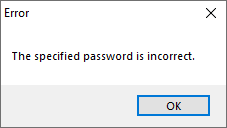
Finally, double-check that you're not confusing an incorrect password message with an error related to corrupted files. If the file is incomplete or has integrity issues, entering a valid password might not be enough to recover all the documents.
Is it safe to use websites to remove WinRAR passwords?
When you search for solutions online, you'll probably find pages that offer to unlock compressed files simply by uploading them to a server.
Although some tools can perform password checks, Uploading personal or confidential documents to an unknown website poses a risk to your privacy..
Consider, for example, a file containing invoices, employment documents, family photos, or bank details. By sending it to an external service, you could lose control over where it's stored and who can access it.
Therefore, if you need to recover important files, the wisest course of action is work locally on your computer and avoid sharing sensitive information with services whose reliability you do not know.
Also, remember that no website can guarantee that you will be able to access a properly encrypted RAR file without knowing its password.
Common mistakes when trying to remove a WinRAR password
One of the most widespread mistakes is thinking that it is enough to Change the extension from .rar to .zip To remove the protection. This modification only changes the file name, but does not alter its content or remove the encryption.
Another common mistake is selecting a repair option thinking it will recover a forgotten password. WinRAR's repair functions are designed to attempt to fix specific integrity issues, not to recover passwords.
It's also advisable to avoid deleting the original file immediately after creating a new copy. If any documents weren't extracted correctly, you could lose important information.
Finally, remember that Unzipping a file does not remove its original password. The protection remains in the old RAR file, although the extracted documents can be opened without it.
Frequently asked questions about how to remove the password from WinRAR
Can I remove a WinRAR password without knowing it?
There is no function that allows you to directly remove encryption without knowing the key. Some tools may attempt to recover it by trying different combinations, but their success is not guaranteed.
Is it possible to remove a WinRAR password without installing any programs?
If you already have the files extracted, you can create a passwordless ZIP file using Windows-compatible tools. However, to extract the contents of an encrypted RAR file, you will first need to access the data with the correct password.
Does removing the password modify the original documents?
Normally not. When you extract the files and recompress them, you create a new copy. The content of the documents should remain intact if the entire process is completed successfully.
Can I remove the password from multiple RAR files at once?
Yes, provided you know the necessary passwords to extract them. You can decompress multiple files and then create new, unprotected compressed documents.
How long does it take to remove the password from a RAR file?
If you know the password, the recovery time will depend mainly on the size of the files and your computer's performance. If you don't know the password, trying to recover it can be extremely slow or even impossible.
Is it possible to remove the password in Windows 11?
Yes. You can use WinRAR on Windows 11 to extract the contents of a password-protected archive and create a copy without a password. The procedure is very similar to the one used on Windows 10.
Tips to avoid problems with WinRAR passwords
If you frequently work with compressed files, it's worth taking some precautions to avoid losing access to important documents.
The first one consists of store passwords in a secure manager, especially when you use long combinations that are difficult to memorize.
It's also a good idea to keep a backup of your most important documents in a separate location. This way, if you ever forget the password for a compressed file, you can recover the contents from another copy.
When sharing protected documents with others, make sure to provide them with the password through an appropriate channel and avoid always using the same combination for all your files.
Finally, before permanently deleting any protected RAR file, Verify that the new copy contains all the documents and that you can access them without problems.
Conclusion: The best way to remove the password from WinRAR
As you have seen, Removing the password from WinRAR is a simple procedure when you know the original password.. You just need to extract the documents, select the files again, and create an unprotected RAR or ZIP file.
The situation changes when you've forgotten your password. In that case, the best course of action is to check where you saved it, contact the person who created the file, or try to recover an original copy of the documents.
Although there are specialized tools that test different combinations, you should remember that WinRAR's encryption is designed to protect your information and that There are no guarantees of recovering an unknown password.
If you have kept the original key, you can easily solve the problem and get a new copy of your files that you can open as many times as you want without re-entering any password.